Documentation -- Optional Situational Options
Please Note : These options may not be available in all leagues!
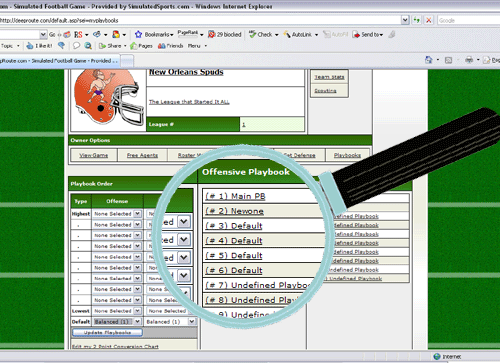
Once a playbook has been created, it will be included as an option in the drop-down boxes under the "Playbook Order" section of your playbooks page (you do not have to include all defined playbooks in your gameplan). Initially, the only playbooks you will see selected in this section are the default playbooks you selected in the steps above. Once you begin creating your own playbooks, you will put them in the order of priority you wish the game use them from highest to lowest. By ordering one playbook over another, the game will be sure to use the selections in the higher rated playbook before the selections in a lower rated playbook even if the same situation exists in both playbooks. This can be useful in the case of creating a unique playbook versus a specific team, or if your team sustains an injury to a key player.
On the next screen, you will be presented with several sections. Two sections that appears on both the offensive and defensive playbook screen are what we will call the "Option Section" and the "Situational Section."
As previously mentioned, you can enter up to 120 different scenarios in each playbook. When you create a new playbook, each scenario is simply named "Scenario 1", "Scenario 2", etc. You can select which scenario you wish to edit in the drop-down box under the "Scene :" label (the number in the box to the right of that label is the position of the scenario in your priority list). Note : When you change the scenario you are working on, all changes to the previous scenario will be lost unless you have clicked the "Confirm Scenario" button!
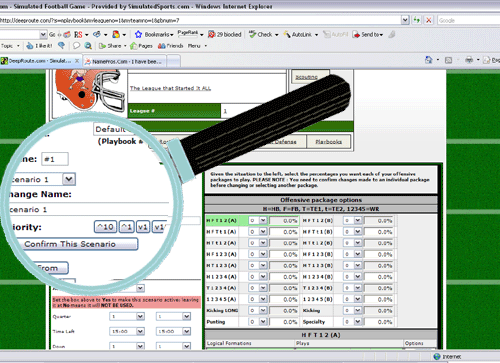
You can rename your scenario something more descriptive (ie : "3rd < 1Y; Q3-4"). Just like when you order playbooks, scenarios listed higher to the top will be used before scenarios that are listed lower if both scenarios cover the same situation (this will make sense later). If you want to move a scenario up or down, you can do so with the ^10, ^1, v1, v10 buttons. Please note : The name of the scenario does NOT indicate order. If you move a scenario out of order without changing the name, you are likely to confuse yourself. You can always see where the scenario you are working on falls in the priority order by looking in the box to the right of the "Scene:" label!
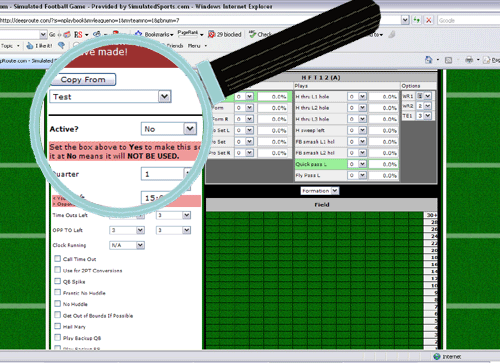
If you would like to base one scenario off of another, you choose the scenario you wish to copy to from the drop-down box under the "Scene :" label. This, of course, will select your scenario. You can then select the scenario you wish to copy from the drop down list below the "Copy From" button. Hitting the "Copy From" button will copy copy the information from this scenario into the currently selected scenario. Confirming the information is not necessary.
..and a bunch of other things. All options listed and what they mean are listed in this section.
The first thing you will want to confirm is that, if you want to include a scenario in your playbook, is that your scenario is activated. All scenarios are inactive by default! To activate your scenario, simply select the Yes option beside the "Active?" label. The ability to inactivate scenarios is included to allow you to activate certain scenarios for certain games without having to delete them and re-enter them every time.
The next step is one of the most delicate. In this step, you will select at what points during a game you want to perform certain plays. The game will only use this scenario if it encounters this exact situation in a game. Otherwise, the scenario will be skipped. You can drill down on many different levels, including :
Below is a very simple example :
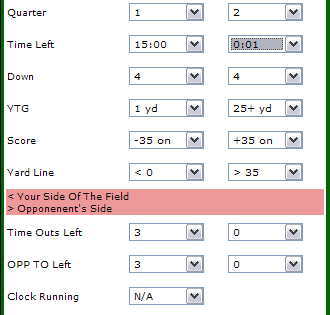
The way to interpret this would be :
In the first or second quarter...
With 15:00 left in the first quarter to 0:01 left in the second quarter...
On 4th Down Only...
With between one yard to go thru 25 or more yards to go...
If I am down by 35 or more points or up by 35 or more points...
From my own 0 yard line up through my opponents 35 yardline...
If I have 3 to 0 time outs remaining...
If my opponent has 3 to 0 time outs remaining...
Regardless of whether to clock is running or not.
If you have a scenario like this activated in your playbook, and the game hits this situation, the game will use this scenario to decide what to do.
That was a simple example. Here, however, is one that might actually exists in the offensive default playbook :
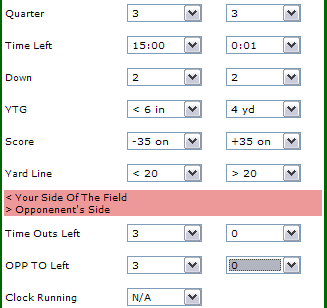
This means that :
In the third quarter...
With 15:00 to 0:01 left...
On 2nd Down...
With between 6 inches and 4 yards to go...
If I am down by 35 or more points or up by 35 or more points...
If I am between my own 20 yardline an my opponents 20 yard line...
If I have 3 to 0 time outs remaining...
If my opponent has 3 to 0 time outs remaining...
Regardless of whether to clock is running or not.
So, if the game encounters this sitation, and you have not defined any scenario that covers the situation, the game will use this scenario from the default playbook. If, of course, the situation you have encountered exists in one of your active playbooks and the scenario that includes it is active, the game would use the information in your self-defined scenario. There are several check boxes under the section that allows you set when you want to run a scenario. These do a variety of things, and are explained below :
Call Time Out - If this situation occurs, a timeout is called (if you have any left). Timeouts will NOT be called if the clock is not running.
Use For 2PT conversion - Use this scenario when a 2 Point Conversion is being attempted
QB Spike - If this situation occurs, your QB will run up to the line and spike the QB to stop the clock (if it is running). If you have the Call Time Out box set and you have time outs set, a timeout will be called. If you do not have the Call Time Out box clicked or you have no timeouts left, the QB will spike the ball to stop the clock.
Frantic No Huddle - If this is selected, your team will get to the line of scrimmage as quickly as possible and run a play (NOT ALLOWING SUBSTITUTIONS) using the players already on the field. Again, this can be clicked in coordination with Call Time Out and QB Spike (which will be attempted before this one). This will not be called if the clock is stopped.
No Huddle - Your team gets to the line of scrimmage quickly without substitutions. The players on the field are used. Ignored if the clock is stopped.
Get out of bounds if possible - if possible, the player will attempt to get out of bounds to stop the clock instead of trying to gain extra yards
Hail Mary - All receivers that are assigned to go out head to the endzone for a last ditch throw.
Play Backup QB - Sit your QB and play the backup; useful late in the game to avoid injury
Play Backup RB - Similar to Above
Play Backup WRs - Similar to Above
Play All Backups - Similar to above
Finally, the "Save Playbook" button is at the bottom of this section. It is important to save your playbook when you are finished, otherwise your changes will be lost! Also, remember to "Confirm This Scenario" before saving your playbook.
Up through now, we have covered the following steps relavent to both offensive and defensive playbooks :
Now that we have a pretty good idea of the "Option Section" and "Situation Section", we’ll move onto actually calling the offensive and defensive plays in their respective playbooks.
Next:
Offensive Playbook Options
Defensive Playbook Options
User Defined Playbook
For starters, we will explain the rest of the playbook page, and what each section is and does. Let's start with the sections listed "Offensive Playbook" and "Defensive Playbook." Under each of these sections, you will see 12 playbooks listed. Initially, each playbook will be named "Undefined Playbook" with a number beside it from 1-12. In each of these playbooks, you can define under which situations you will want to run certain player packages and certain plays. We will explain how to create and edit your playbooks later.Once a playbook has been created, it will be included as an option in the drop-down boxes under the "Playbook Order" section of your playbooks page (you do not have to include all defined playbooks in your gameplan). Initially, the only playbooks you will see selected in this section are the default playbooks you selected in the steps above. Once you begin creating your own playbooks, you will put them in the order of priority you wish the game use them from highest to lowest. By ordering one playbook over another, the game will be sure to use the selections in the higher rated playbook before the selections in a lower rated playbook even if the same situation exists in both playbooks. This can be useful in the case of creating a unique playbook versus a specific team, or if your team sustains an injury to a key player.
Creating a Playbook
So you're ready to take control of your team, eh? The first thing to do is click on offensive or defensive playbook you want to create (alternatively, you could copy a public playbook by choosing the [O] beside a particular playbook). You can have up to twelve unique offensive and defensive playbooks per team, and each of these playbooks will allow you to cover 120 unique scenarios. Let's begin by clicking on an available playbook (for this example, we will choose an offensive playbook, though selecting a defensive playbook is identical in nature). In this example, I have already created 6 playbooks (one called "Main PB" one called "New One", and 4 called "Default"). Let's click on an empty playbook, (# 7) Undefined Playbook to get started creating a brand new playbook.On the next screen, you will be presented with several sections. Two sections that appears on both the offensive and defensive playbook screen are what we will call the "Option Section" and the "Situational Section."
Option Section
The option section is where you will name your playbook, name each play grouping in your playbook, and confirm your scenarios. When you create a new playbook, it uses the name "Default". You can change your playbook name to whatever you like (this is the name the will appear by the playbook when you look at the previous "My Playbooks" screen).As previously mentioned, you can enter up to 120 different scenarios in each playbook. When you create a new playbook, each scenario is simply named "Scenario 1", "Scenario 2", etc. You can select which scenario you wish to edit in the drop-down box under the "Scene :" label (the number in the box to the right of that label is the position of the scenario in your priority list). Note : When you change the scenario you are working on, all changes to the previous scenario will be lost unless you have clicked the "Confirm Scenario" button!
You can rename your scenario something more descriptive (ie : "3rd < 1Y; Q3-4"). Just like when you order playbooks, scenarios listed higher to the top will be used before scenarios that are listed lower if both scenarios cover the same situation (this will make sense later). If you want to move a scenario up or down, you can do so with the ^10, ^1, v1, v10 buttons. Please note : The name of the scenario does NOT indicate order. If you move a scenario out of order without changing the name, you are likely to confuse yourself. You can always see where the scenario you are working on falls in the priority order by looking in the box to the right of the "Scene:" label!
If you would like to base one scenario off of another, you choose the scenario you wish to copy to from the drop-down box under the "Scene :" label. This, of course, will select your scenario. You can then select the scenario you wish to copy from the drop down list below the "Copy From" button. Hitting the "Copy From" button will copy copy the information from this scenario into the currently selected scenario. Confirming the information is not necessary.
Situational Section
This is right beneath the Option Section. In this section, you will do several things, including :- Activating a Scenario
- Selecting under which circumstances a group of plays may be called
- Saving your entire playbook
- Call TimeOuts
..and a bunch of other things. All options listed and what they mean are listed in this section.
The first thing you will want to confirm is that, if you want to include a scenario in your playbook, is that your scenario is activated. All scenarios are inactive by default! To activate your scenario, simply select the Yes option beside the "Active?" label. The ability to inactivate scenarios is included to allow you to activate certain scenarios for certain games without having to delete them and re-enter them every time.
The next step is one of the most delicate. In this step, you will select at what points during a game you want to perform certain plays. The game will only use this scenario if it encounters this exact situation in a game. Otherwise, the scenario will be skipped. You can drill down on many different levels, including :
- Quarter
- Time Left
- Down
- Yards To Go
- Score
- Yard Line
- Your Time Outs Left
- Opponents Time Outs left
- Whether or not the clock is running
Below is a very simple example :
The way to interpret this would be :
In the first or second quarter...
With 15:00 left in the first quarter to 0:01 left in the second quarter...
On 4th Down Only...
With between one yard to go thru 25 or more yards to go...
If I am down by 35 or more points or up by 35 or more points...
From my own 0 yard line up through my opponents 35 yardline...
If I have 3 to 0 time outs remaining...
If my opponent has 3 to 0 time outs remaining...
Regardless of whether to clock is running or not.
If you have a scenario like this activated in your playbook, and the game hits this situation, the game will use this scenario to decide what to do.
That was a simple example. Here, however, is one that might actually exists in the offensive default playbook :
This means that :
In the third quarter...
With 15:00 to 0:01 left...
On 2nd Down...
With between 6 inches and 4 yards to go...
If I am down by 35 or more points or up by 35 or more points...
If I am between my own 20 yardline an my opponents 20 yard line...
If I have 3 to 0 time outs remaining...
If my opponent has 3 to 0 time outs remaining...
Regardless of whether to clock is running or not.
So, if the game encounters this sitation, and you have not defined any scenario that covers the situation, the game will use this scenario from the default playbook. If, of course, the situation you have encountered exists in one of your active playbooks and the scenario that includes it is active, the game would use the information in your self-defined scenario. There are several check boxes under the section that allows you set when you want to run a scenario. These do a variety of things, and are explained below :
Call Time Out - If this situation occurs, a timeout is called (if you have any left). Timeouts will NOT be called if the clock is not running.
Use For 2PT conversion - Use this scenario when a 2 Point Conversion is being attempted
QB Spike - If this situation occurs, your QB will run up to the line and spike the QB to stop the clock (if it is running). If you have the Call Time Out box set and you have time outs set, a timeout will be called. If you do not have the Call Time Out box clicked or you have no timeouts left, the QB will spike the ball to stop the clock.
Frantic No Huddle - If this is selected, your team will get to the line of scrimmage as quickly as possible and run a play (NOT ALLOWING SUBSTITUTIONS) using the players already on the field. Again, this can be clicked in coordination with Call Time Out and QB Spike (which will be attempted before this one). This will not be called if the clock is stopped.
No Huddle - Your team gets to the line of scrimmage quickly without substitutions. The players on the field are used. Ignored if the clock is stopped.
Get out of bounds if possible - if possible, the player will attempt to get out of bounds to stop the clock instead of trying to gain extra yards
Hail Mary - All receivers that are assigned to go out head to the endzone for a last ditch throw.
Play Backup QB - Sit your QB and play the backup; useful late in the game to avoid injury
Play Backup RB - Similar to Above
Play Backup WRs - Similar to Above
Play All Backups - Similar to above
Finally, the "Save Playbook" button is at the bottom of this section. It is important to save your playbook when you are finished, otherwise your changes will be lost! Also, remember to "Confirm This Scenario" before saving your playbook.
Up through now, we have covered the following steps relavent to both offensive and defensive playbooks :
- How to select your default playbook
- How to create your own playbook
- How to put your playbooks in the order you would like
- How to name your playbook
- How to activate a scenario
- How to name a scenario
- How to confirm a scenario
- How to order your scenarios
- How to define when to use a scenario
- How to save a playbook
Now that we have a pretty good idea of the "Option Section" and "Situation Section", we’ll move onto actually calling the offensive and defensive plays in their respective playbooks.
Next:
Offensive Playbook Options
Defensive Playbook Options